How to Remove PDF Metadata Before Sharing a Redacted PDF
Learn what PDF metadata can reveal, why metadata cleanup matters, and how to remove hidden document properties before sharing or uploading a redacted PDF.
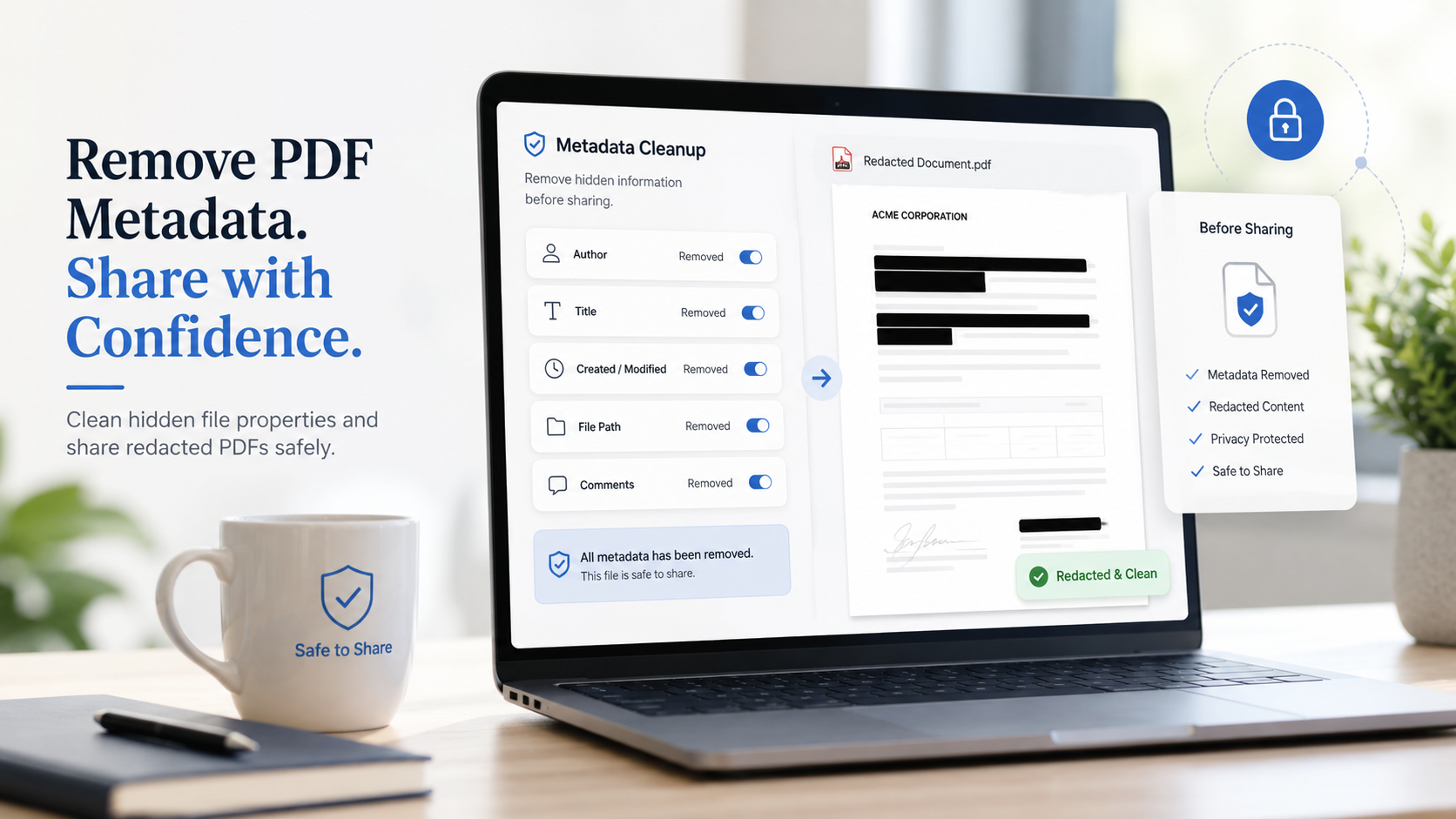
Key takeaways
- PDF metadata can expose hidden information that is not visible on the page.
- Metadata may include author names, company names, file titles, timestamps, software, comments, and file paths.
- Redacting visible text does not automatically remove metadata unless the tool includes metadata cleanup.
- Metadata cleanup is especially important before sharing contracts, bank statements, tax documents, invoices, HR files, or PDFs uploaded to AI tools.
- Always check the final PDF properties before sharing.
What Is PDF Metadata?
PDF metadata is information stored inside the PDF file about the document. Some metadata is basic and useful, such as the document title or creation date. But in privacy-sensitive workflows, metadata can expose information that should not be shared.
Common PDF metadata fields include title, author, subject, keywords, creator application, producer application, creation date, modification date, company name, file path, custom properties, comments, and revision history.
This information may not appear on the page. A user can read the visible document and never notice it. But the metadata may still exist in the file properties.
Why Metadata Matters After Redaction
Redaction usually focuses on removing visible content. For example, you might redact a client name from a contract, remove an account number from a bank statement, or hide a signature from a tax document.
But the PDF metadata may still reveal information such as the original author's name, the company that created the document, the internal document title, the software used to generate the file, the date the document was created or edited, a file path containing a person's username, internal project names, or comments or custom properties.
This can create privacy risk even when the page itself appears clean. A redacted PDF might hide a client name on the page but keep that client name in the document title. A contract might remove a signer's name visually but keep the author name in metadata.
Redact your PDF now
Upload a PDF, mark sensitive areas, clean metadata, and download a redacted copy. Free for documents up to 10MB.
Does Redacting a PDF Automatically Remove Metadata?
Not always. PDF redaction and metadata cleanup are related, but they are not identical. Redaction removes selected page content. Metadata cleanup removes hidden document properties.
A good redaction workflow should include both when the document is privacy-sensitive. For example, redaction removes an account number from the visible page while metadata cleanup removes the author name and internal file title. Redaction removes a signature area while metadata cleanup removes timestamps and software details.
If your redaction tool does not clean metadata, you may need to remove metadata separately.
What Metadata Should You Remove Before Sharing?
Before sharing a PDF, review these fields. The author field may reveal the person who created or edited the document. The title field may contain the original file name, client name, project name, case name, internal matter name, or confidential description. Subject and keyword fields can include internal labels, project names, customer names, or document classification terms.
Creator and producer fields can reveal which application created or processed the PDF. Creation and modification dates can reveal when a document was created, edited, or exported. Company information may need review when sharing anonymized documents. File paths can reveal usernames, department names, client names, or internal server structure. Custom metadata fields may contain internal notes, review comments, or workflow details.
- Author name.
- Document title.
- Subject and keywords.
- Creator and producer software.
- Creation and modification dates.
- Company name.
- Internal file path.
- Comments and custom properties.
When Metadata Cleanup Is Especially Important
Metadata cleanup is useful for many documents, but it is especially important for contracts, bank statements, tax documents, invoices, and PDFs uploaded to AI tools.
Contracts may contain internal matter names, author names, negotiation history, client names, and timestamps. Bank statements may expose account holder names, financial institutions, exported file names, and timestamps. Tax PDFs may contain taxpayer names, preparer information, timestamps, software details, and file properties. Invoices may contain client names, vendor details, accounting system metadata, and payment notes.
Before uploading a PDF to ChatGPT, Claude, Gemini, or another AI tool, remove unnecessary metadata along with visible sensitive content.
How to Remove PDF Metadata Before Sharing
A safe metadata cleanup workflow has several steps. First, keep the original file secure and work on a copy to prevent accidental loss. Second, remove visible private information including names, emails, phone numbers, account numbers, signatures, addresses, tax IDs, and confidential clauses.
Third, open the PDF properties and inspect metadata fields for author, title, company, subject, keywords, creator, producer, dates, file path, and custom properties. Fourth, use a tool that removes or clears metadata fields. Fifth, save or download the cleaned PDF as a new file with a clear name that does not expose sensitive information.
Sixth, open the cleaned file and check document properties again. Also search for sensitive terms, try copy-paste around redacted areas, and open the file in another viewer.
- Create a working copy and keep the original secure.
- Redact visible sensitive content first.
- Review document properties for hidden metadata.
- Clean metadata using a dedicated tool.
- Download a new copy with a safe file name.
- Verify the final file before sharing.
Metadata and AI Upload Safety
Metadata matters even more when uploading PDFs to AI tools. A user may redact visible names and account details but forget that the file metadata still contains the original author, company, title, or project name.
If the AI workflow extracts or preserves document properties, this hidden information may still be exposed. Before uploading a PDF to an AI tool, redact unnecessary visible content, remove metadata, rename the file safely, test the final PDF, and upload only the cleaned copy.
Common Mistakes to Avoid
Avoid these metadata cleanup mistakes. Redacting visible text but ignoring metadata. Sharing a PDF with the original author name still embedded. Leaving client names in the document title. Leaving internal file paths in document properties. Keeping comments or custom properties. Renaming the file but not cleaning metadata. Cleaning metadata but sharing the original file by mistake. Uploading a metadata-rich PDF to AI tools. Assuming all redaction tools automatically remove metadata.
- Redacting visible text but ignoring metadata.
- Sharing a PDF with the original author name still embedded.
- Leaving client names in the document title.
- Leaving internal file paths in document properties.
- Keeping comments or custom properties.
- Renaming the file but not cleaning metadata.
- Sharing the original file by mistake.
- Uploading a metadata-rich PDF to AI tools.
PDF Redaction Safety Checklist
Common mistakes to avoid
Redact your PDF now
Upload a PDF, mark sensitive areas, clean metadata, and download a redacted copy. Free for documents up to 10MB.
Frequently Asked Questions
What is PDF metadata?
PDF metadata is hidden information stored inside the file, such as title, author, subject, keywords, software, creation date, modification date, company name, and custom properties.
Does redacting a PDF remove metadata?
Not always. Redaction removes selected visible content. Metadata cleanup removes hidden document properties. For sensitive documents, you should do both.
What metadata should I remove before sharing a PDF?
Review author name, title, subject, keywords, company, creator software, producer software, creation date, modified date, file paths, comments, and custom properties.
Can PDF metadata reveal private information?
Yes. Metadata can reveal names, companies, project titles, timestamps, internal file paths, software, or workflow details that do not appear on the visible page.
Should I remove metadata before uploading a PDF to ChatGPT?
Yes, if the PDF contains sensitive or identifying information. Remove unnecessary visible content and metadata before uploading the document to an AI tool.
Is renaming a PDF enough to remove metadata?
No. Renaming the file changes the file name, but it does not necessarily remove metadata stored inside the PDF.
Related Guides
How to Redact a PDF Safely Before Sharing
Learn how to permanently remove sensitive information from a PDF instead of simply covering it with a black box.
Redact PDF Before Uploading to ChatGPT or AI Tools
Remove names, emails, phone numbers, account details, signatures, and metadata from PDFs before uploading them to AI tools.
Can Redacted PDF Text Be Recovered?
Understand when redacted PDF content is truly removed and when black boxes or annotations may still expose hidden text.