How to Redact a PDF Safely Before Sharing
Learn how to redact a PDF safely, remove hidden metadata, avoid unsafe black boxes, and check whether sensitive information was permanently removed.
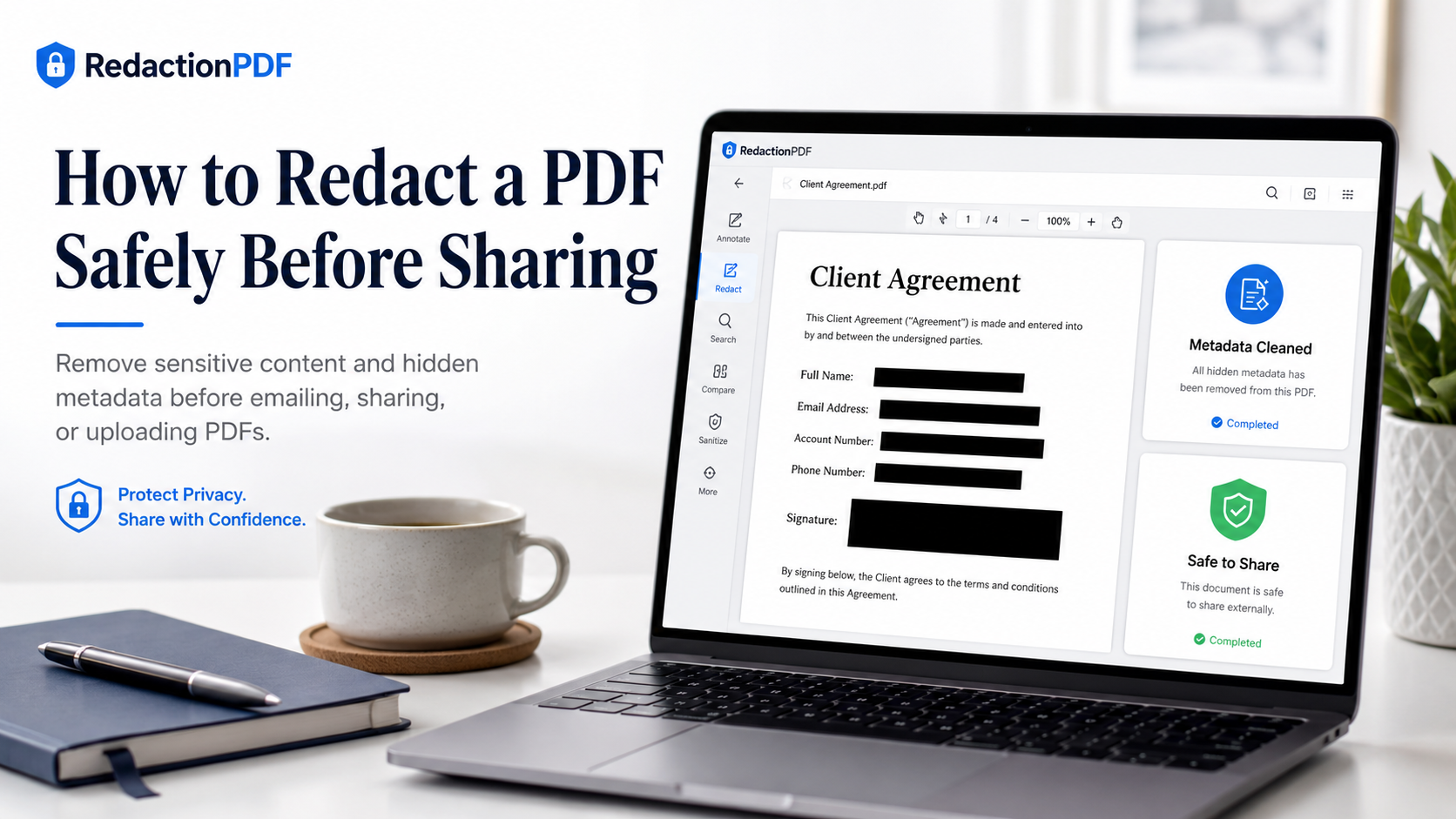
Key takeaways
- PDF redaction should remove the underlying content, not just cover it visually.
- Black rectangles, highlights, comments, and drawing tools may leave sensitive text behind.
- Safe redaction should include both visible content and hidden metadata review.
- Scanned PDFs may need manual area redaction because text search may not detect image-only content.
- Always test the final redacted PDF before sharing, emailing, or uploading it to AI tools.
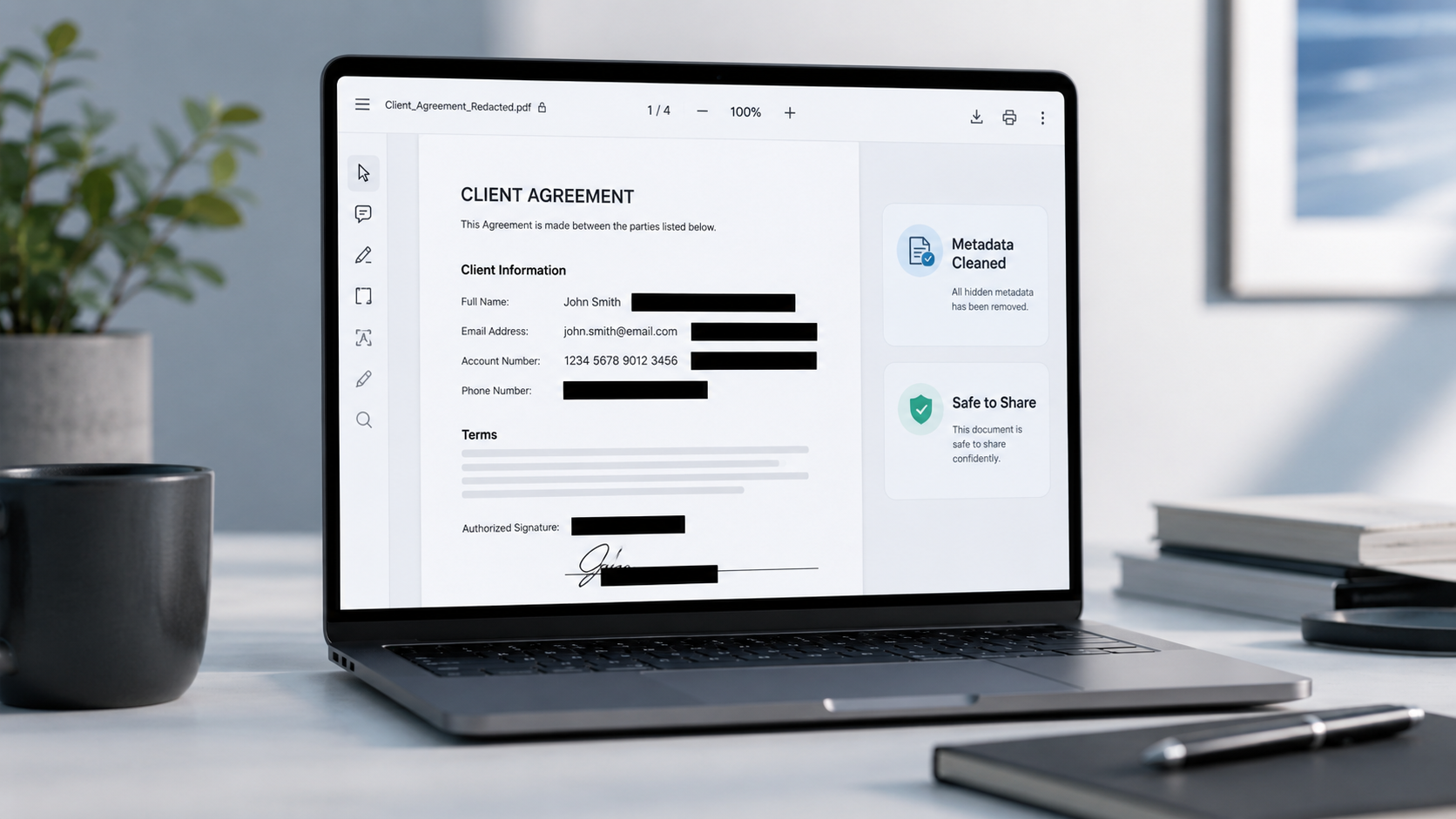
What PDF Redaction Actually Means
PDF redaction is the process of permanently removing sensitive content from a PDF before the document is shared. The goal is to create a safer copy that does not expose private text, images, metadata, or hidden document details.
A properly redacted PDF should not allow someone to reveal the removed information by selecting text, copying text, searching the file, deleting a black rectangle, inspecting annotations, or checking hidden document properties.
This is different from visual masking, which changes how a document looks but may not change what the document contains.
Why Black Boxes Are Not Always Safe
Many people try to redact PDFs by using drawing tools. They open a PDF editor, draw a black rectangle over a name or account number, save the file, and assume the content is gone. That can be risky.
A black shape may simply sit on top of the original text. If someone removes the shape, selects the hidden text, or uses a PDF extraction tool, the sensitive information may still appear.
Real redaction removes the selected content from the redacted copy. Visual masking only hides it.
- Do not rely on drawing tools alone.
- Do not use white text on a white background.
- Do not cover text with comments or annotations.
- Do not assume a screenshot or export removed metadata.
- Always test the redacted copy before sharing.
Redact your PDF now
Upload a PDF, mark sensitive areas, clean metadata, and download a redacted copy. Free for documents up to 10MB.
What Information Should You Redact?
Start by asking this question: would this information create privacy, financial, legal, or business risk if exposed?
Common information to redact includes: full names, email addresses, phone numbers, home addresses, signatures, account numbers, routing numbers, IBAN or SWIFT/BIC codes, credit card or payment details, Social Security numbers or tax IDs, passport or national ID numbers, employee IDs, confidential contract clauses, internal notes, private pricing or negotiation details, and metadata such as author name, file title, software, timestamps, and file history.
A Safe PDF Redaction Workflow
A safe workflow is simple, but each step matters. Keep the original file secure, create a working copy, review every page, search for sensitive terms, mark text and areas for redaction, remove metadata, apply redaction, and test the final file.
Search is especially useful for text-based PDFs. However, search may not detect sensitive information inside scanned images. If your file is image-based, you still need manual visual review.
- Keep the original file secure and create a separate working copy.
- Review every page including headers, footers, tables, images, and attachments.
- Search for names, emails, phone numbers, account numbers, and keywords.
- Mark text, images, signatures, and areas for redaction.
- Remove metadata from document properties.
- Apply redaction and download a new copy.
- Test the final file with search, copy-paste, and metadata inspection.
How to Check If Your PDF Is Properly Redacted
Do not stop after downloading the file. Always test it. Search for the terms you removed, try copy-paste near redacted areas, inspect metadata, open the file in a second PDF viewer, and check whether redaction boxes behave like removable overlays.
Different PDF viewers can display documents differently. A second viewer helps catch obvious rendering or layer issues.
- Search test: search for names, emails, account numbers, tax IDs.
- Copy-paste test: paste near redacted areas into a plain text editor.
- Metadata test: open document properties and check for remaining data.
- Second viewer test: open in another PDF viewer or browser.
- Overlay test: try to select the blacked-out region.
PDF Redaction Safety Checklist
Common mistakes to avoid
Redact your PDF now
Upload a PDF, mark sensitive areas, clean metadata, and download a redacted copy. Free for documents up to 10MB.
Frequently Asked Questions
Is blacking out text the same as PDF redaction?
Not always. A black box is safe only if the underlying text or image content is removed. If the black box is only a shape, annotation, or overlay, the original text may still remain in the PDF.
Does PDF redaction remove metadata?
Only if the tool includes metadata cleanup. Redaction removes selected visible content. Metadata cleanup removes hidden document properties such as author names, timestamps, software, file titles, and other file information.
Can I redact a scanned PDF?
Yes, but scanned PDFs often require manual area redaction because the text may be part of an image. Search-based detection may not find image-only text.
How do I know if a PDF is properly redacted?
Search for sensitive terms, try copy-paste, inspect metadata, open the file in a second PDF viewer, and check whether redaction boxes behave like removable overlays.
Should I redact PDFs before uploading them to AI tools?
Yes, if the PDF contains personal, financial, legal, business-sensitive, or confidential information that is not required for the AI task.
Related Guides
Redact PDF Before Uploading to ChatGPT or AI Tools
Remove names, emails, phone numbers, account details, signatures, and metadata from PDFs before uploading them to AI tools.
Can Redacted PDF Text Be Recovered?
Understand when redacted PDF content is truly removed and when black boxes or annotations may still expose hidden text.