Can Redacted PDF Text Be Recovered?
Understand when redacted PDF content is truly removed and when black boxes, annotations, or overlays may still expose hidden text.
Key takeaways
- Proper PDF redaction removes content from the redacted copy.
- Unsafe masking only hides content visually.
- Black boxes, annotations, and overlays may leave text recoverable.
- Metadata, comments, form fields, and attachments can still expose private information.
- Always test the final PDF before sharing it.
The Short Answer
Properly redacted PDF text should not be recoverable from the final redacted copy. However, many redacted PDFs are not actually redacted. They are only covered.
This usually happens when someone uses drawing tools to place a black rectangle over sensitive information. The page looks safe, but the original text may still exist underneath the shape.
The real question is: was the PDF truly redacted, or was it only visually masked?
Proper Redaction vs Unsafe Masking
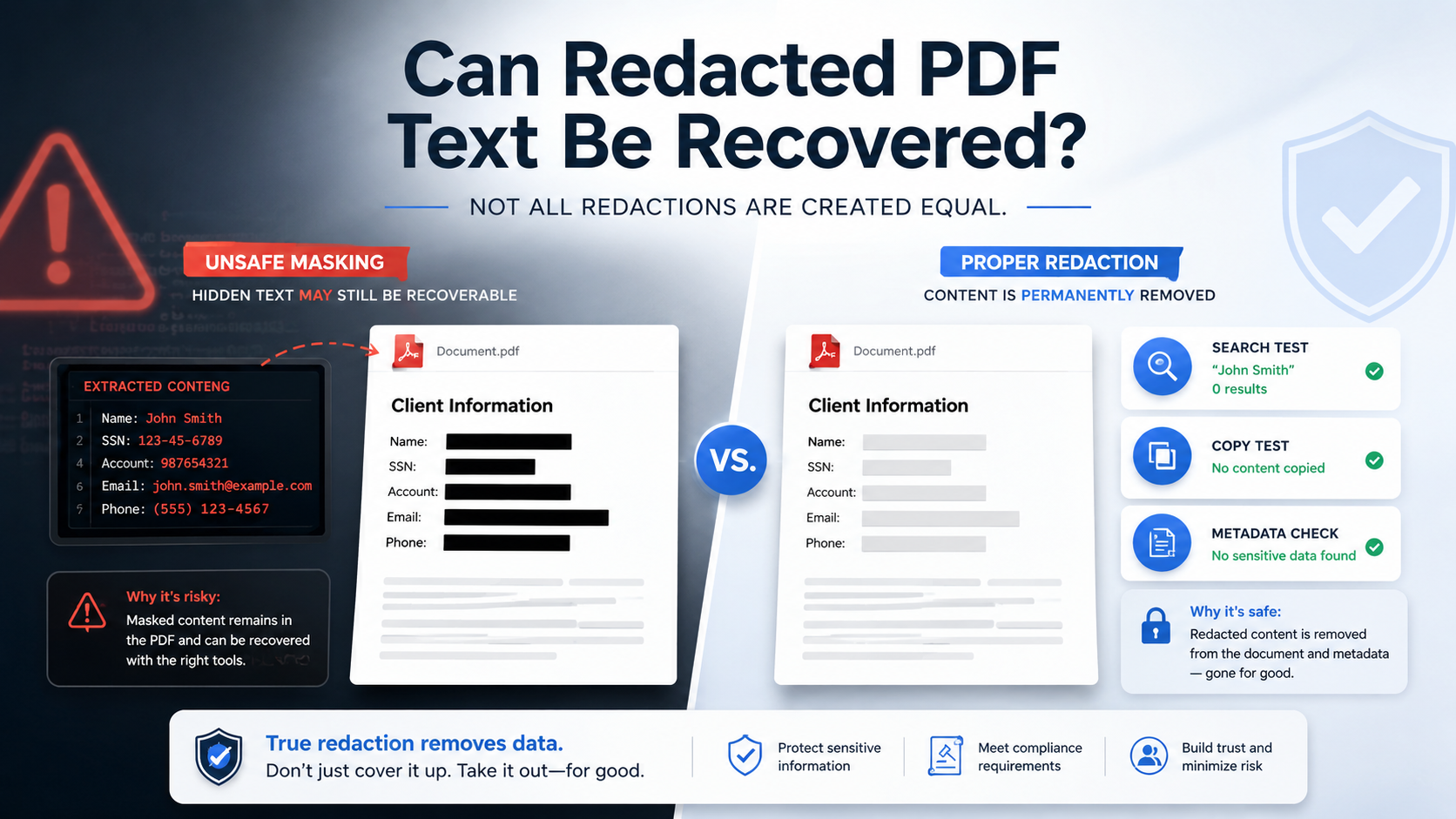
Proper redaction removes selected content from the PDF. Unsafe masking only changes what the page looks like. Proper redaction should remove the selected text or image area, prevent removed text from being searched, prevent removed text from being copied, and support metadata cleanup.
Unsafe masking may draw a black rectangle over text, add a comment or annotation, use a highlight tool, place an image over text, change text color to match the background, leave hidden text in the file, leave metadata untouched, and create a document that looks safe but is not.
- Proper: removes underlying content permanently.
- Unsafe: covers content visually but leaves it in the file.
- Proper: creates a separate redacted version for sharing.
- Unsafe: may leave metadata, comments, and form fields intact.
Redact your PDF now
Upload a PDF, mark sensitive areas, clean metadata, and download a redacted copy. Free for documents up to 10MB.
Why Some Redacted PDFs Still Leak Information
PDF files can be more complex than they appear. A PDF may include visible text, hidden text layers, images, scanned pages, OCR text, comments, annotations, form fields, attachments, links, and metadata.
When a tool covers content without removing it, the sensitive information may remain in one of these layers. For example, a black box may hide an account number visually. But if the original account number remains in the text layer, it may still appear when copied or searched.
- Text layer: underlying text may remain if only visually covered.
- OCR layer: scanned PDFs may contain hidden OCR text.
- Metadata: author names, software, timestamps may reveal context.
- Comments and annotations: sensitive notes may still exist in file properties.
How to Test Whether Redacted Text Can Still Be Recovered
You can run several simple checks before sharing a redacted PDF. Search for hidden terms, try copy and paste, check whether black boxes are selectable, inspect metadata, open the file in another PDF viewer, and check comments, forms, and attachments.
If any test reveals sensitive content, the PDF is not safely redacted. Return to the original file and apply real PDF redaction.
- Search for redacted names, emails, account numbers, and keywords.
- Copy-paste text near redacted areas into a plain text editor.
- Check whether black boxes behave like selectable objects.
- Inspect document properties and metadata.
- Open the file in another PDF viewer or browser.
- Review comments, annotations, form fields, and attachments.
PDF Redaction Safety Checklist
Common mistakes to avoid
Redact your PDF now
Upload a PDF, mark sensitive areas, clean metadata, and download a redacted copy. Free for documents up to 10MB.
Frequently Asked Questions
Can properly redacted PDF text be recovered?
Properly applied redaction should remove the selected content from the redacted copy. If the content was only visually covered, it may still be recoverable.
Why can I copy text from a blacked-out PDF?
That usually means the PDF was masked with a shape, annotation, or overlay instead of being truly redacted. The original text may still exist underneath.
Can metadata reveal redacted information?
Metadata may not reveal the exact redacted text, but it can expose author names, file titles, timestamps, software, and document history. Metadata should be reviewed before sharing.
Is printing to PDF enough to make redaction safe?
Not always. Printing or exporting may change the file structure, but it does not guarantee that all sensitive content, metadata, comments, or hidden data are removed.
How can I reduce the risk of PDF redaction recovery?
Use a real PDF redaction workflow, remove metadata, search the final file, test copy-paste, inspect document properties, and share only the final redacted copy.
Related Guides
How to Redact a PDF Safely Before Sharing
Learn how to permanently remove sensitive information from a PDF instead of simply covering it with a black box.
Redact PDF Before Uploading to ChatGPT or AI Tools
Remove names, emails, phone numbers, account details, signatures, and metadata from PDFs before uploading them to AI tools.