How to Redact a Scanned PDF
Understand why scanned PDFs are different, when OCR matters, and how to safely redact image-based documents.
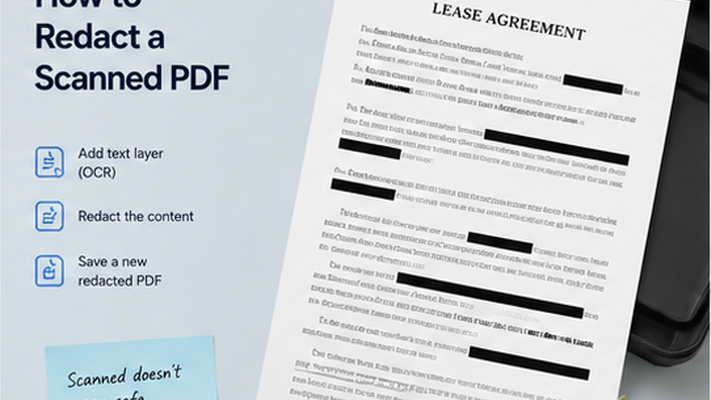
Key takeaways
- Scanned PDFs are images, not text. Standard search-based redaction may not detect image-only content.
- Area-based redaction is needed for scanned documents.
- OCR text layers can contain hidden text that search tools may find even when the image appears clean.
- Always visually review every page of a scanned PDF before sharing.
Why Scanned PDFs Are Different
A scanned PDF is an image of a physical document. The text exists as pixels, not as selectable text. This has important implications for redaction. Search-based tools may not find text in scanned pages. OCR can add an invisible text layer that search tools may detect.
The safest approach for scanned PDFs is visual area redaction: mark the region of each sensitive item and apply redaction to the image itself.
The OCR Layer Risk
Many scanned PDFs include an OCR text layer. This is invisible text extracted from the image to make the document searchable. The OCR layer can contain the same sensitive information as the image. If you redact the image but not the OCR layer, search tools may still find the information.
Check whether your scanned PDF has an OCR layer by trying to select and copy text. If text can be selected and copied, an OCR layer exists and should be reviewed.
Redact your PDF now
Upload a PDF, mark sensitive areas, clean metadata, and download a redacted copy. Free for documents up to 10MB.
How to Safely Redact a Scanned PDF
Use area-based redaction: zoom in on each sensitive region and mark it for removal. Apply redaction to the image layer. Then verify no OCR text remains by searching the file.
- Do not rely on search to find sensitive content in scanned pages.
- Use visual review to identify sensitive regions on each page.
- Apply area-based redaction to cover the image region.
- Check for OCR layers that may contain hidden text.
- Search the file after redaction to confirm no sensitive content remains.
PDF Redaction Safety Checklist
Common mistakes to avoid
Redact your PDF now
Upload a PDF, mark sensitive areas, clean metadata, and download a redacted copy. Free for documents up to 10MB.
Frequently Asked Questions
Can I redact a scanned PDF the same way as a text-based PDF?
Not exactly. Search-based detection may not find content in scanned pages. Use visual area redaction to mark sensitive regions on each page, and check for OCR layers that may contain hidden text.
Related Guides
How to Redact a PDF Safely Before Sharing
Learn how to permanently remove sensitive information from a PDF instead of simply covering it with a black box.
Can Redacted PDF Text Be Recovered?
Understand when redacted PDF content is truly removed and when black boxes or annotations may still expose hidden text.